Tuesday, May 4, 2010

Execute Code When Enter Or Exit Any Pages In Your Application

In some application developer need to execute some code at page load or need to execute some code when leave the page. If the developer need to execute the same code to many of pages in the application at page load (as sharing code will executed when any of the application page load) he need to follow this steps:

1- In your ADF Application Make a new Managed-Bean (assume its name is PageListenerBean).

2- Write this code in the Managed bean

import javax.el.ELContext;
import javax.el.ExpressionFactory;
import javax.el.ValueExpression;

import javax.faces.application.Application;
import javax.faces.context.FacesContext;

import oracle.adf.controller.v2.lifecycle.Lifecycle;

import oracle.adf.controller.v2.lifecycle.PagePhaseEvent;
import oracle.adf.controller.v2.lifecycle.PagePhaseListener;

public class PageListenerBean implements PagePhaseListener{
public PageListenerBean() {
}

public void afterPhase(PagePhaseEvent pagePhaseEvent) {
}

public void beforePhase(PagePhaseEvent pagePhaseEvent) {
if (pagePhaseEvent.getPhaseId() == Lifecycle.PREPARE_MODEL_ID) {
if (!isPostback()){
System.out.println("This Will Execute AT Page Load");
}
}

if (pagePhaseEvent.getPhaseId() == Lifecycle.METADATA_COMMIT_ID) {
if (!isPostback()){
System.out.println("This Will Execute When Leave The Page");
}
}

}
private boolean isPostback() {
return Boolean.TRUE.equals(resolveExpression("#{adfFacesContext.postback}"));
}
private Object resolveExpression(String expression) {
FacesContext facesContext = FacesContext.getCurrentInstance();
Application app = facesContext.getApplication();
ExpressionFactory elFactory = app.getExpressionFactory();
ELContext elContext = facesContext.getELContext();
ValueExpression valueExp =
elFactory.createValueExpression(elContext, expression,
Object.class);
return valueExp.getValue(elContext);
}
}


3- For every page in your application you want to execute this code at page load or when you leave the page ---> Right click on your jspx page and go to your page definition. Set the attribute ControllerClass inside your pageDefinition tag as the name of the managed bean.


4- Run your page to check the results.

Sunday, April 4, 2010

Main References To Learn Oracle ADF

Oracle ADF is a new technology and many people want to learn this and they want to know the main references to learn this technology. Many of them ask a question "How can I start to learn Oracle ADF?" This post will help them and take their hand to learn this technology.
You should at least know Java (J2SE) and it will be better to set with anyone (good in ADF) to explain the basic of ADF to you or take any course for ADF first because if you start from scratch it will be difficult for you to understand ADF.

I prefer, initially you can take a course for ADF, this course will open the door for your mind to go ahead and learn ADF by your self.

I have created a course in Udemy for anyone like to learn ADF. I covered almost all ADF life cycle and at end of the course I create a complete ADF application to show you how you can develop a complete ADF application. By end of this course you should be able to create a complete ADF application by yourself.

ADF can be the first step to Oracle Fusion Middleware world.

This is the course URL

https://www.udemy.com/oracle-adf-12c-for-beginner-step-by-step/


The main references are:

1- JDeveloper home in oracle web site

http://www.oracle.com/technetwork/developer-tools/jdev/overview/jdeveloper-reviewrguide-086026.html

in this site you will find this sections:

- "Overview" this section will explain the overview of some topics as JDeveloper , ADF ... and I prefered for any one does not know anything about JDveloper and ADF read this section first.

- "Getting Started - tutorials" this section will be useful for who want to learn oracle ADF

In this site you can download last version of JDeveloper, you can read the JDeveloper news, you can enter to the JDeveloper & ADF forum and read the blogs.

2- Developer’s Guide
Developer’s Guide is a PDFs file:

1- Web User Interface Developer’s Guide.
2- Fusion Developer's Guide for Model layer.
3- Desktop Integration Developer's Guide.
4- Mobile Browser Client Developer's Guide.
5- Administrator's Developer's Guide.

for learning Oracle ADF you can read Web User Interface Developer’s Guide and Fusion Developer's Guide for Model layer only.

You can download (Web User Interface Developer’s Guide) from here
You can download (Fusion Developer's Guide for Model layer) from here
You can download one pdf hold both View and Model (Oracle Jdeveloper 11g Handbook) from here

or You can find them in Oracle JDeveloper Documentation from

http://docs.oracle.com/cd/E37975_01/index.htm

3- JDeveloper and ADF forum
http://forums.oracle.com/forums/forum.jspa?forumID=83

In this forum you can ask any question or answer any asked question (but first you should have an account in oracle web site).

4- JDeveloper & ADF Blogs
- http://wiki.oracle.com/page/ADF+Blogs

This blogs one of the main references to learn oracle ADF which has a solution or a work around for any issue in ADF.

This is some of the great blogs:

1- http://sameh-nassar.blogspot.com/ :)
2- http://andrejusb-samples.blogspot.com/
3- http://andrejusb.blogspot.com/
4- http://blogs.oracle.com/shay/
5- http://frank.thepeninsulasedge.com/
6- http://www.awasthiashish.com/


This is a 4 main reference that I depending on it for learning oracle ADF.

Hint : Anyone can find another reference please tell me to add it in this post.

Wednesday, February 24, 2010

JavaScript With ADF Faces Samples

In your ADF web application you may want to use javaScript functions to perform some actions in client side. I will list some of the major javaScript functions which I use it in my applications. To use javaScript functions in your ADF Application (In JDeveloper 11.1.1.2.0) you should do the following :

1- Put inside af:document --> af:resource component with type javaScript (prefer to put the af:resource component inside metaContainer facet of af:document).

2- use af:clientListener component to call the function.

some of the JavaScript sample :

- Open popup
function openPopup(evt){
var popup = AdfPage.PAGE.findComponent("popupId");
popup.show();
}

- Hide poup
function aboutOkButton(event) {
var dialog = event.getSource();
var popup = dialog.findComponent("aboutPopup");
popup.hide();
event.cancel();
}

- Change component visibility
function showText()
{
var output1 = AdfUIComponent.findComponent("output1")
var output2 = AdfUIComponent.findComponent("output2")
var input = AdfUIComponent.findComponent("input")

if (input.value == "")
{
output1.setVisible(true);
}
else
{
output2.setVisible(true)
}

}

- Read value from inputText
var input1 = document.getElementById('in1::content');
var input2 = document.getElementById('in2::content');

if (input1.value == input2.value)
{
alert("Equals");
}
else
{
alert("No Equals");
}

- Set Panel Splitter Position
function setSplitterPos(event) {
var source = event.getSource()
source.setSplitterPosition(200);
}

insert inside af:panelSplitter ---> af:clientListener as:
< af:clientListener method="setSplitterPos" type="propertyChange"/ >

- Execute af:commandButton action

var component = AdfPage.PAGE.findComponentByAbsoluteId(commanButtonId);
AdfActionEvent.queue(component, component.getPartialSubmit());

- Execute goButton

function invokeGo(event){
var component = AdfPage.PAGE.findComponentByAbsoluteId("gb1");
var redirectEvent = new AdfRedirectEvent(component, component.getDestination(), true);
redirectEvent.queue(true);
}

Hint :
AdfRedirectEvent is an internal class and the target is not recognized. Note that on the goButton, you need to set the clientComponent property to true.

- Run file.exe
function RunExe()
{
var commandtoRun = "C:\\file.exe";
var objShell = new ActiveXObject("Shell.Application");
objShell.ShellExecute(commandtoRun, "", "", "open", 1);
}

- Accepting only Upper Case characters in input field

/// For IE only

function convertToUpperCase( _event ) {
var currText = null;
currText = String.fromCharCode(window.event.keyCode);
window.event.keyCode = currText.toUpperCase().charCodeAt(0);
}

/// For Mozilla

function convertToUpperCase( _event ) {
var _keycode = _event.getKeyCode();
if( ( _keycode > 64 && _keycode < 90 ) ||

( _keycode > 96 && _keycode < 123 ) ) {

currText = String.fromCharCode(_event.getKeyCode());
currText = currText.toUpperCase();

var _textFieldField = document.getElementById ( _event.getSource().getClientId() );
var _inputFields = _textFieldField.getElementsByTagName('INPUT');
var _firstInputField = _inputFields[0];
_firstInputField.value = String.concat( _firstInputField.value, currText);
_event.cancel();
}
}

- To know which browser you use

function iEOrNot(myEvent) {
var currText = null;
if(!myEvent)
myEvent = window.event;
if(navigator.appName == 'Microsoft Internet Explorer') {
// I am IE
} else if(navigator.appName != 'Microsoft Internet Explorer') {
// I am not IE
}
}

- Get screen width and hight

width = java.awt.Toolkit.getDefaultToolkit().getScreenSize().width;

hight= java.awt.Toolkit.getDefaultToolkit().getScreenSize().hight;

- Get Mac Address, Ip Address and Computer Name
function call(event) {
var source = event.getSource();
var macAddress = "";
var ipAddress = "";
var computerName = "";
var wmi = GetObject("winmgmts:{impersonationLevel=impersonate}");
e = new Enumerator(wmi.InstancesOf("Win32_NetworkAdapterConfiguration"));
for(; !e.atEnd(); e.moveNext()) {

var s = e.item();
if(s.DNSHostName!=null)
{
macAddress = s.MACAddress;
ipAddress = s.IPAddress(0);
computerName = s.DNSHostName;
}
}
}

- Open inputDate calender

function openDate(event) {
src = event.getSource();
popup = src.findComponent(""+AdfRichUIPeer.CreateSubId(src.getClientId(), AdfDhtmlInputDatePeer._POPUP_ID));
hints = {alignId:src.getClientId(), align:AdfRichPopup.ALIGN_END_AFTER};
popup.show(hints);
}

- Get keyCode of the key
function keyCode(evt) {
var k=evt.getKeyCode();
}

- Set cursor to inputText
function setFocus(evt) {
var t=document.getElementById('t1::content');// t1 is the inputText Id
t.focus();
}

- Change panelGroupLayout layout property


Sunday, January 10, 2010

Create PL/SQL Function And Call It From Your ADF Application

In many situations you need to create PL/SQL function in your database and call it from your application. This post will illustrate how to create PL/SQL function in your database and how to call this function. The next example will be applied in HR Schema which we will create a PL function that take an employee Id and return his name. Follow these steps:
1- Create new ADF Application assume Application name "UsingPLSQLFunction_Application".
2- Create new page assume its name "index.jspx".
3- Your Application should like this

4- Right-click in your model project -- > new --> ADF Business Components --> Business Components From Tables. Then Press Ok.
5- Choose you database connection (assume HR Schema).
6-Choose EMPLOYEES Table as an Entity. Then Choose Employees as Updatable view object. Then press in finish button.
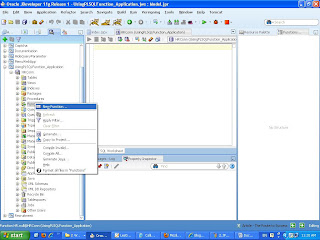
7- Open your database navigator then open your application connection then right-click on Function then choose New Function.

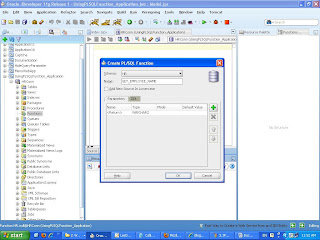
8- Enter Function Name as "GET_EMPLOYEE_NAME" then press ok. 9- Write this function :
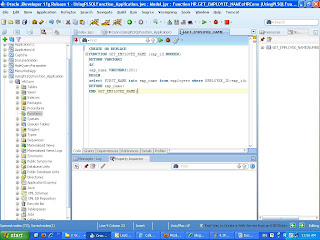
CREATE OR REPLACE FUNCTION GET_EMPLOYEE_NAME (emp_id NUMBER)

RETURN VARCHAR2

AS

emp_name VARCHAR2(20);

BEGIN

select FIRST_NAME into emp_name from employees

where EMPLOYEE_ID=emp_id;

RETURN emp_name;

END GET_EMPLOYEE_NAME;

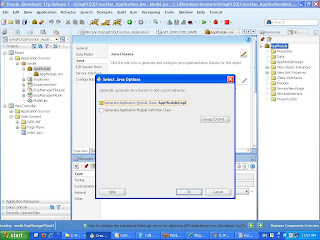
10 - Open your Application Module and generate AppModuleImpl file. 11- Open this file and write this function
imports:
import java.sql.CallableStatement;
import java.sql.SQLException;import java.sql.Types;
import oracle.jbo.JboException;

public String getEmployeeName(int empId){

CallableStatement cs=null;

try{

cs=getDBTransaction().createCallableStatement("begin ? := GET_EMPLOYEE_NAME(?); end;",0);

cs.registerOutParameter(1, Types.VARCHAR);

cs.setInt(2, empId);

cs.executeUpdate();

return cs.getString(1);

}catch(SQLException e){

throw new JboException(e);

}

}

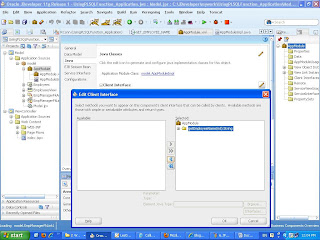
12- Open AppModule -- > java --> client Interface then shuttle this function.

13- From your Data Control drag your function in the page then choose ADF Parameter Form.
14- Right-click in the generated button then choose "Create Method Binding For Action" then create a manged bean.
15- The commandButton Method will be like this
public String cb1_action() {
BindingContainer bindings = getBindings();
OperationBinding operationBinding = bindings.getOperationBinding("getEmployeeName");
Object result = operationBinding.execute();
System.out.println("Result= " + result); // result will be the output of PL function
if (!operationBinding.getErrors().isEmpty()) {
return null;
}
return null;
}
16- Save your Application then run index.jspx.

Sunday, December 13, 2009

Use Checkbox For Selecting Multiple Rows From af:table

One of the feature which existed in JDeveloper 10g but not found in JDeveloper 11g is using checkbox for selecting multiple rows from af:table.
This is my workaround for achieving this feature in JDeveloper 11g. Follow this steps:

1- Make a new ADF fusion web Application.
2- choose your database connection. (assume we are using HR Schema)
3- Make one viewObject based on entity (assume Employees viewObject based on Employees Entity)
4- Open your Employees ViewObject and make a new transient attribute with type boolean and make it always updatable (assume the transient Attribute name is 'TransientAttr').


5- Make a new page and drag your employee view as a table and don't check on Row Selection checkbox.
6- In your Structure Palette goto your inputText Transient attribute and right click and choose Convert to.


7- From opening dialog choose Select Boolean Checkbox ---> Ok ----> Ok.

8- Make the selectBooleanCheckbox component AutoSubmit with true and put its Id in the table partialTrigger and clear its lable and text.
9-
Select all columns and goto Style Property and inlineStyle write
this #{(row.TransientAttr)?"background-color: #ffaaaa":""};
where #ffaaaaa is the color of the selected row (you can change this color as you want).
10-Now any row has its transient Attribute with true value, this row will be selected row.

Sunday, November 8, 2009

Getting the Value from a SelectOneChoice List (Not Index)

One of the Issue I found when I use af:selectOneChoice component that when I want to get the selected value from one of the selectOneChoice attribute from backingbean I found the return value is the index of selected value not the value. (Using HR Schema)
assume we have an EmployeesView which has a DepartmentId (as a lookup to DepartmentView) and want to get the the value of selected Department. To solve this problem do this :

BindingContainer bindings =BindingContext.getCurrent().getCurrentBindingsEntry();
JUCtrlListBinding listBinding =(JUCtrlListBinding)bindings.get("DepartmentId");
Row selectedValue = (Row) listBinding.getSelectedValue();
System.out.println(selectedValue.getAttribute("DepartmentId"));

Where:

- DepartmentId the selectOneChoice Attribute
which you want to get its value.
- selectedValue is the row of the lookup attribute (In this case will be the row of the selected department).

Monday, November 2, 2009

How To Make Declarative Component

Declarative Component is used to build a reusable UI component. You can design your own component using ADF Faces Component. To establish declarative component follow this Steps :
1- Make a new ADF Application.
2- In ViewController Project, right click in a web content folder -----> new.
3- In Web tier -->JSF--> JSF Declarative Component.
4- Enter Declarative component name (e.g. UserInfo) and package.
5- Define a tag library name. This tag library name will be the name of the library in which the component will be stored and is the name you will see in the drop down of the component palette when you use the component.
There is a facet Definitions - Attributes – Methods. You can define any of these
depend on your component. Assume we want to make a component for user
Information it contain a three text as name, Address and telephone and one toolbar that
can manage user to add any button to do any action. In this case we need one facet to
add in the toolbar and three attributes then press Ok.
6- Drag and Drop af:panelBox in the page and set its Text to User Information thin in panelBox toolbar facet drag af:facetRef and choose your facet.


7- Drag af:panelFormLayout and insert inside it a three inputText and set its label to Name, Address and Telephone.


8- In the af:inputText (Name) edit the value by choosing Expression Builder then from JSP Object choose attrs then Name.
9- Repeat this Steps to af:inputText (Address) and af:inputText (Telephone).
10- In ViewController Project right click then choose Project Properties.
11- Choose Deployment then press new.


12- In Archive Type choose ADF Library JAR File and Enter the name of Jar as (UserInfoJar) then press Ok.


13- In ViewController Project right click then choose Deploy -->UserInfoJar-->To ADF Library JAR.


14- In Recourse Palette -> New Connection -->File System.

15- Enter A connection name and the path of your JAR file then Press Ok.

16- To use this component at any project open the project and go to Resource Palette and right click on the UserInfoJar.jar file then choose Add To Project then press to Apply Library.


17- Now go to Component Palette you will find your UserInfo Component.

You Can Download the declarative component example from this link :

Sunday, November 1, 2009

How Can You Manipulate With Table Column Filter Fields

One of the af:table feature is a filter over its column to filter its data. You can manipulate with this fields with backingbean, this manipulation can be as :
- Execute some code before filtering.
- Execute some code after filtering.
- Add something to the value you enter to filter before filtering.
- Re-execute query.
.
.
.


to do this follow this steps :

1- Bind your table in the backingbean (e.g.in Binding property of table set #{myBackingbean.myTable}).
2- In table QueryListener property set its value to
#{ myBackingbean.onTableQueryExecuted}
3- In your backingbean implement onTableQueryExecuted with:
public void onTableQueryExecuted(QueryEvent queryEvent) {
// If needed, do something before the table's query is processed

invokeMethod("#{bindings.DeptView1Query.processQuery}",QueryEvent.class,queryEvent);

// Where DeptView1Query is a searchRegion name in your binding
// If needed, do something after the table's query is processed
}

public static Object invokeMethod(String expr, Class[] paramTypes,
Object[] params) {
FacesContext fc = FacesContext.getCurrentInstance();
ELContext elc = fc.getELContext();
ExpressionFactory ef = fc.getApplication().getExpressionFactory();
MethodExpression me =
ef.createMethodExpression(elc, expr, Object.class, paramTypes);
return me.invoke(elc, params);
}

public static Object invokeMethod(String expr, Class paramType,
Object param) {
return invokeMethod(expr, new Class[] { paramType },
new Object[] { param });
}

To get the value which you enter to filter the column :

private FilterableQueryDescriptor getTableQueryDescriptor() {
return (FilterableQueryDescriptor)getMyTable().getFilterModel();
}
private Map getTableFilterCriteria() {
return getTableQueryDescriptor().getFilterCriteria();
}


getTableFilterCriteria().clear(); // to clear all filds.
getTableFilterCriteria().put("Dname","%N%");// to set value of the filterable field .
getTableFilterCriteria().remove("Dname"); // to clear the Dname Filterable text only.
getTableFilterCriteria().get("Dname");// to get the value that you enter to filter the table.


To re-execute query:
QueryEvent queryEvent = new QueryEvent(getMyTable(),getTableQueryDescriptor() );
queryEvent.setPhaseId(PhaseId.INVOKE_APPLICATION);
getTable().queueEvent(queryEvent);

Filling SelectOneChoice From Backingbean

On of the major component in tha ADF RC component is a af:selectOneChoice. You can fill this component from backingbean by tow ways:

A) Fill SelectOneChoice Component Programmatically:
1-In the backingbean you can define a variable that hold the selected Value (the value which you are select from selectOneChoice component ) [e.g public String selectedValue;] and make its setter and getter.
2- In the backingbean you can define an array of selectItem that will fill the selectOneChoice(e.g. public SelectItem[] elements = null; ) and make its getter and setter.
3- In the getter of selectItem write this code :


where : UCustomerView1Iterator is the Iterator which its data will fill the selectOneChoice (You must add this iterator in the pageDef).

You backingbean it should be like this :
-----------------------------------------------


4- In you page Drage a selectOneChoice component and set its value to :
#{yourBean.selectedValue}.
5- Insert f:selectItems inside af:selectOneChoice and set its value to:
#{yourBean.elements}.
--------------------------------------------------------------------------------
B) The second way to fill the selectOneChioce is to use af:forEach component and I prefer this way:
1- In the pageDef make a table in the binding section that will fill your selectOneChoice(assume that you make a DeptView1 table in the binding.
2- DeptView1 Table is point to the DeptView1Iterator make its length to -1.
3- Drag and drop a selectOneChoice component and set its value to the attribute in the backingbean.
4- Insert inside selectOneChoice af:forEach component and set Items property to : #{bindings.DeptView1.rangeSet} and set Var property to row.
5- Insert Inside af:forEach af:selectItem set Value Property to #{row.Deptno} this represent the return value of the selectOneChoice if you want the return value be a name of the department set Value Property to #{row.Dname}. Set the Label Property to #{row.Dname}.(Where Deptno and Dname is the attribute of the iterator you use to fill selectOneChoice).
you can download an example from here.

Get Bindings From Backingbean

In many situation we need to get binding container from our backingbean to execute some of the operation as ( Commit - Rollback - Next - Last - ExecuteWithParam - ............. ) or get your Iterator to get some information as (get Current Row - get ViewObject - get number of row count - refresh iterator - .............. ) There are two way to get your binding container from backingbean :

1- BindingContainer bindings = BindingContext.getCurrent().getCurrentBindingsEntry();
then you can use bindings object to execute some of binding operation as commit operation as:
OperationBinding operationBinding = bindings.getOperationBinding("Commit");
operationBinding.execute();

2- The second way to get binding container is to define a method that return binding container as :

private BindingContainer bindings;
public BindingContainer getBindings() {
if (this.bindings == null) {
FacesContext fc = FacesContext.getCurrentInstance();
this.bindings = (BindingContainer)fc.getApplication().evaluateExpressionGet(fc,"#{bindings}",
BindingContainer.class);
}
return this.bindings;
}

to get binding and execute a commit operation :
BindingContainer bindings = getBindings();
OperationBinding operationBinding = bindings.getOperationBinding("Commit");
Object result = operationBinding.execute();
if (!operationBinding.getErrors().isEmpty()) {
return null;
}